- Click on the PIN icon displayed on the drawing to view a PIN’s details.
Doing so will open the Pin details screen where user can view the details of the PIN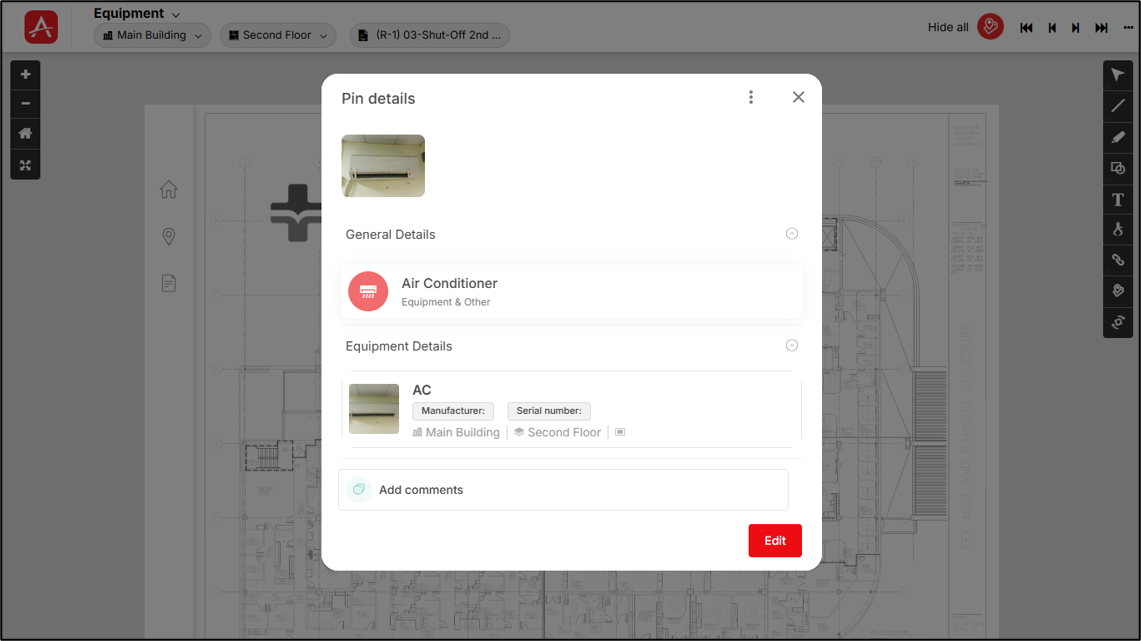
Once on the Pin details screen you need to scroll down if you want to see the supporting documents, Forms (added to the Pin), Equipment (along with all equipment information by clicking on it) etc., along with them the delete option for that specific PIN is also present in this screen.
- If any of the details of the PIN are required to be modified, click on [Edit] button present at the bottom right corner to open the Edit PIN screen and then edit them.
You can manage forms associated with a PIN by following the same steps described in Viewing/Adding Forms Associated with Equipment. You can edit the associated form templates, create a new form using an associated template, or approve or reject an existing form.
Click the attached equipment to open the Equipment Details screen. You can edit the equipment information as required, including:
- General Details
- Links: Add or delete links.
- Parts: Add or delete parts.
- Forms: Add or delete forms.
Similarly, for Equipment you can manage forms associated with it by following the same steps described in Viewing/Adding Forms Associated with Equipment. You can edit the associated form templates, create a new form using an associated template, or approve or reject an existing form.
- Supporting Documents: Add or delete supporting documents.
Once done click on [Save] button to save the changes. The save button will appear during the editing process.
Comments on a PIN
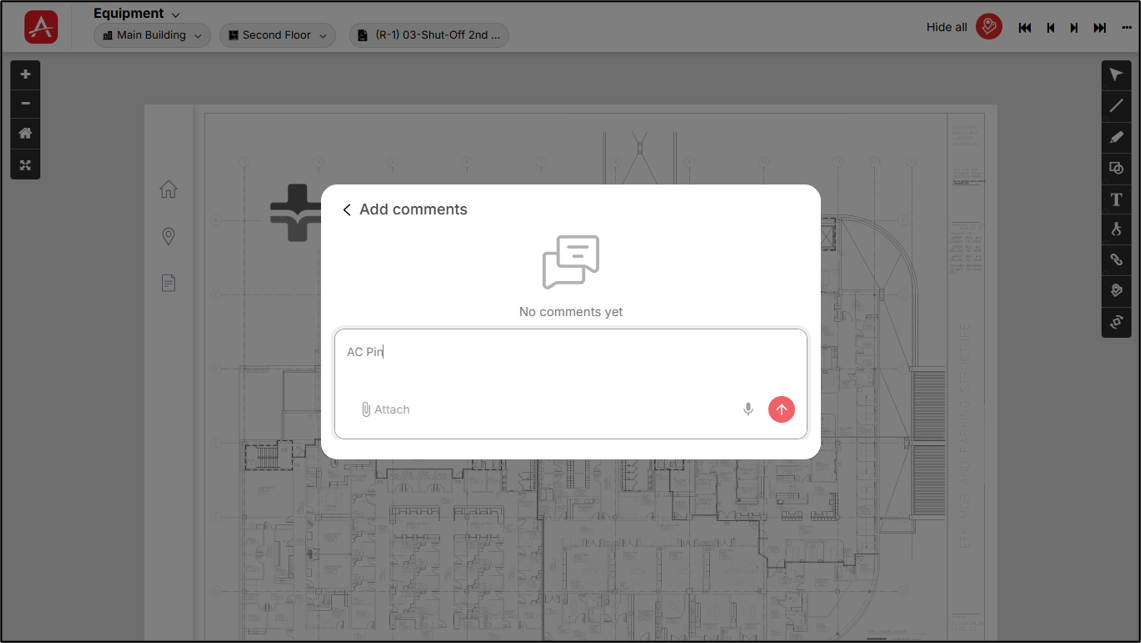
You can see the comments on a specific PIN by another user and also add new comments for that specific PIN by clicking on the [Add comments] field present at the bottom of the Pin details screen.
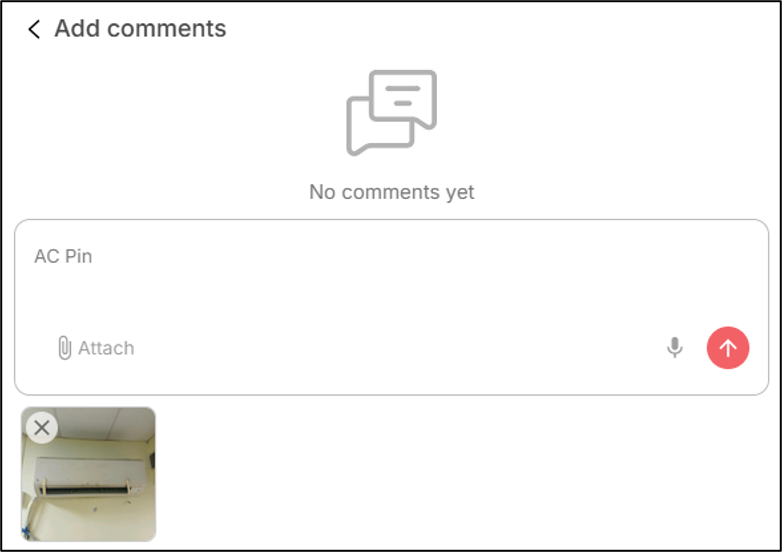
- Click on the [Add comments] button, you will get navigated to an Add comments screen.
- You can also attach files supporting your comment by clicking on the [Attach] button present at bottom left corner in comments pop-up screen. It will open the file system of your local computer from where you can attach the preferred file.
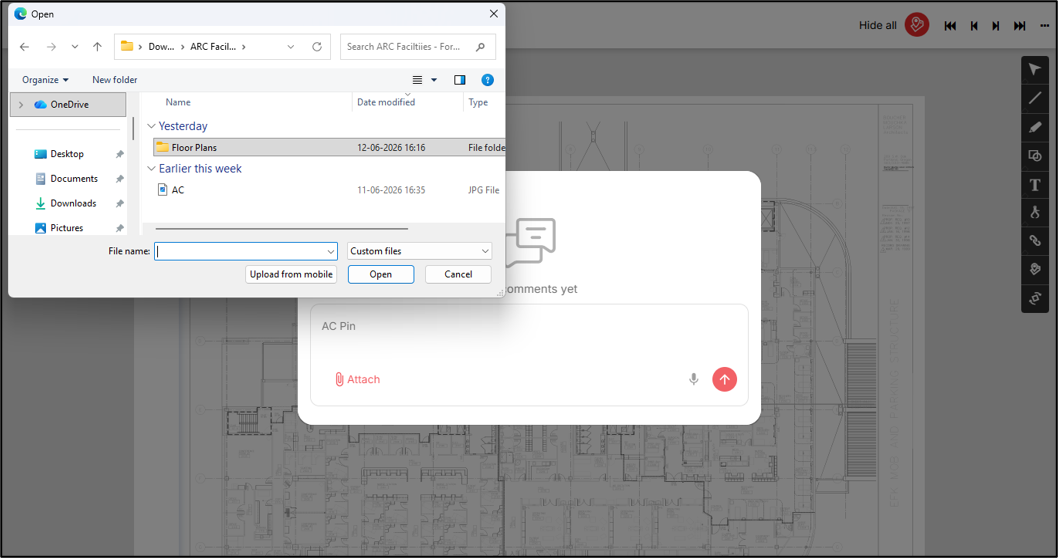
- Once attached the file gets visible below the comment
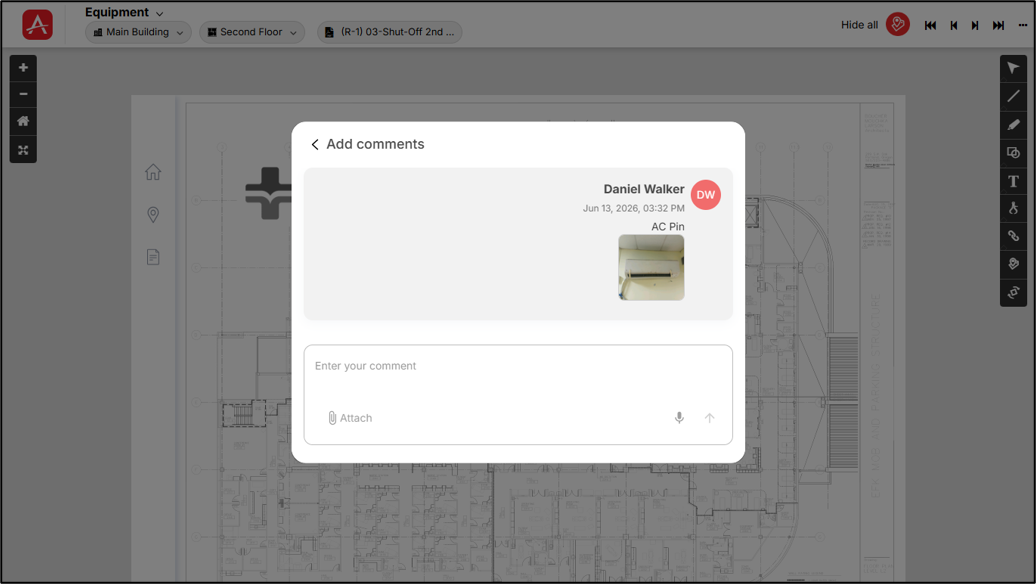
- Click on
 [Post comment] to successfully post the comment for that particular PIN. Once posted the comment will be visible in the Add comments screen like shown below.