
If you want to add a new PIN icon which is not present in the system-supplied list of PIN icons, then you can create a new PIN icon (for an unlisted equipment).
- Click the PIN creation annotation icon and then click on the portion of the floor plan where you want to place the PIN.
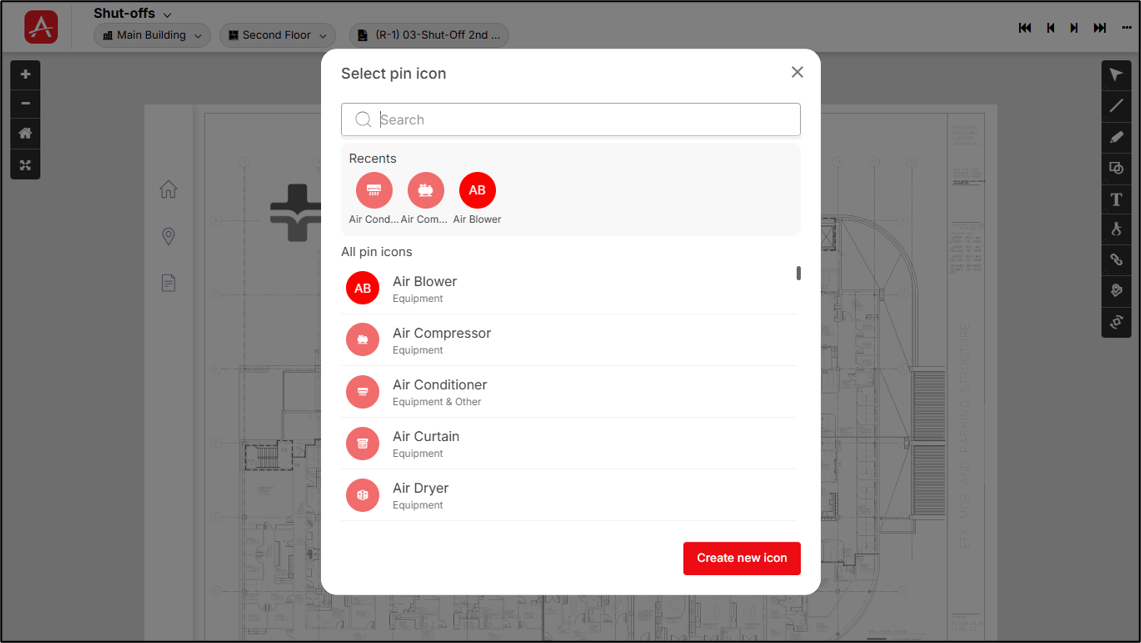
The Select pin icon pop-up will appear now on top of the Viewer screen (Viewer screen will come in the background) immediately after the PIN is placed.
Screenshot below displays the Select pin icon screen:
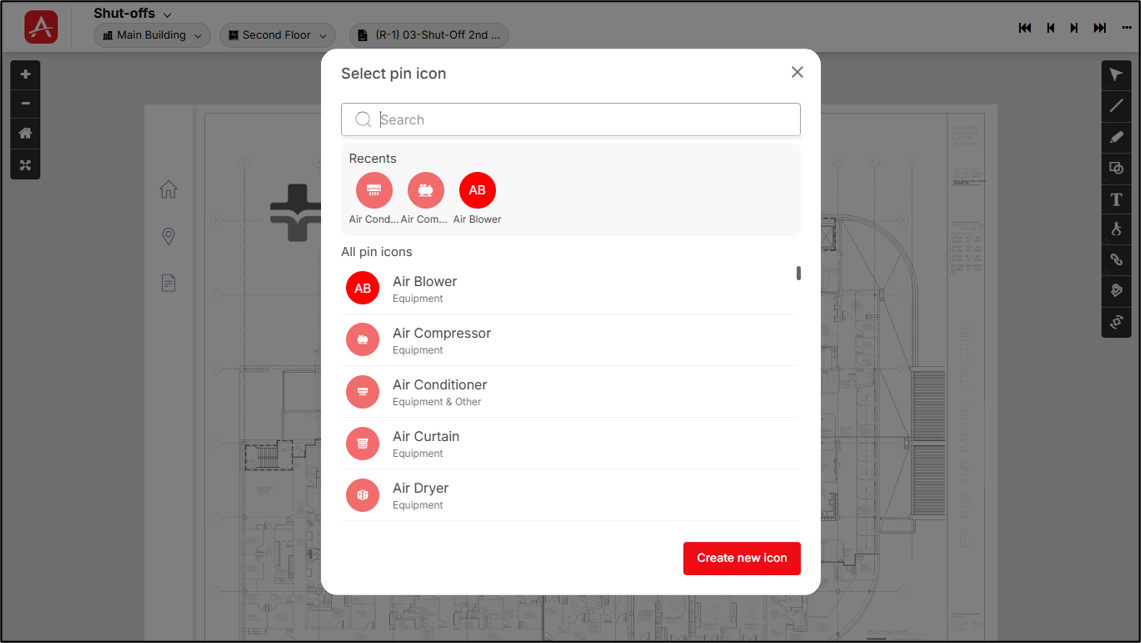
- To create a custom pin icon, click Create New Icon located in the bottom-right corner of the screen.
- Once you click on the Create new icon button, you will get navigated to the Create new icon screen.
Screenshot below displays the Create new icon screen:
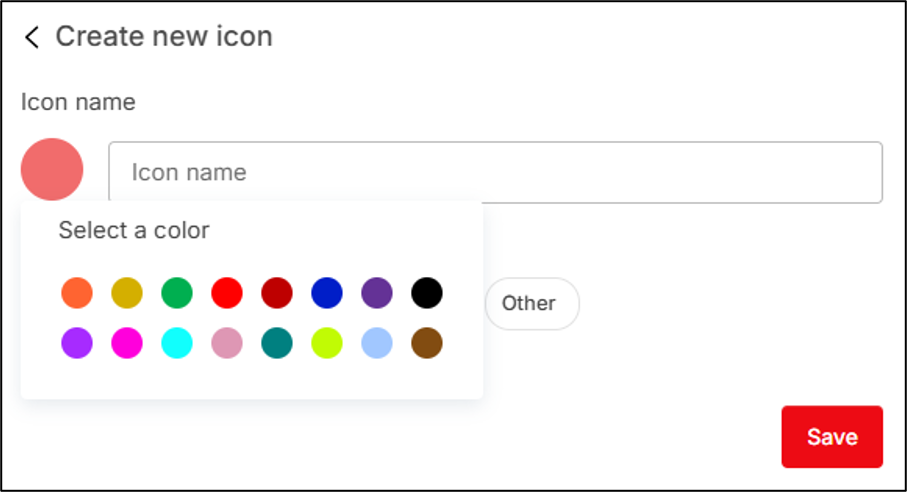
- Enter a name for the pin icon in the Icon Name field and select the desired color. A default color is provided and can be used if no change is required.
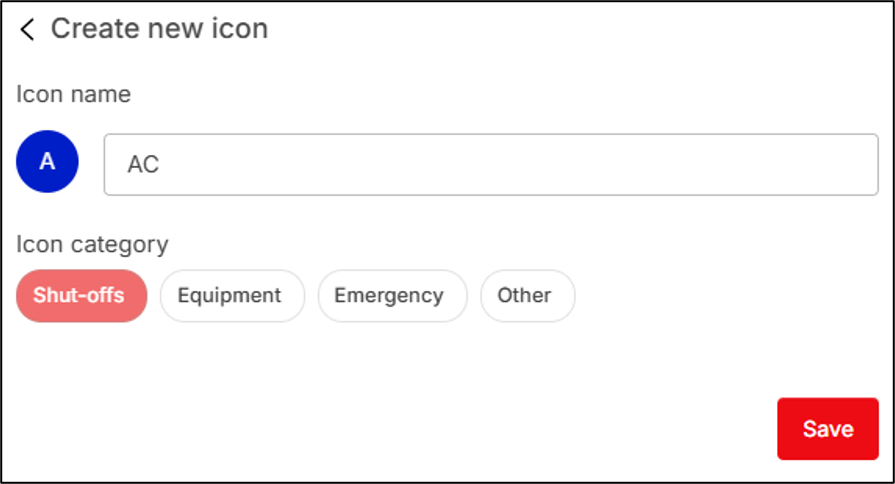
- Select one or more categories for the pin icon by selecting Shut-offs, Equipment, Emergency, and/or Other. The Shut-offs category is selected by default.
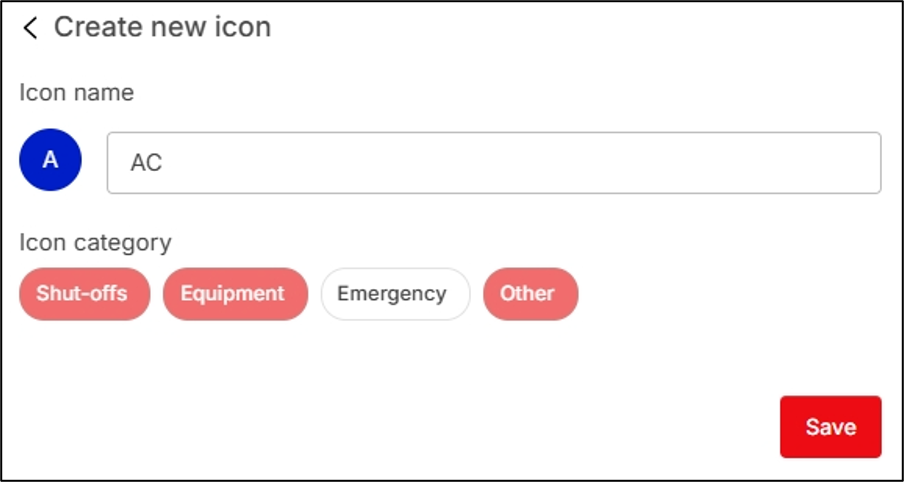
- Now click on [Save] button to successfully create the new pin icon.
Now, you can go ahead and create a new PIN based on the newly created PIN icon.
Restrictions on custom PIN creation
- No special character entry is allowed in the name of custom PIN. The name will be alphanumeric
- Minimum one-character entry is required to create a PIN, whereas the maximum permissible character length is 40
- No duplicate PIN creation is allowed (application restricted). If entered custom PIN name matches with existing application-supplied PIN name then application notify you with a message that “PIN name already exists, hence you can select that name from the list”
Editing/Deleting a custom PIN icon
- To edit a custom PIN icon, click the PIN creation annotation icon and then click on the portion of the floor plan where you want to place the PIN.
The Select pin icon pop-up will appear now on top of the Viewer screen (Viewer screen will come in the background) immediately after the PIN is placed.
Screenshot below displays the Select pin icon screen:
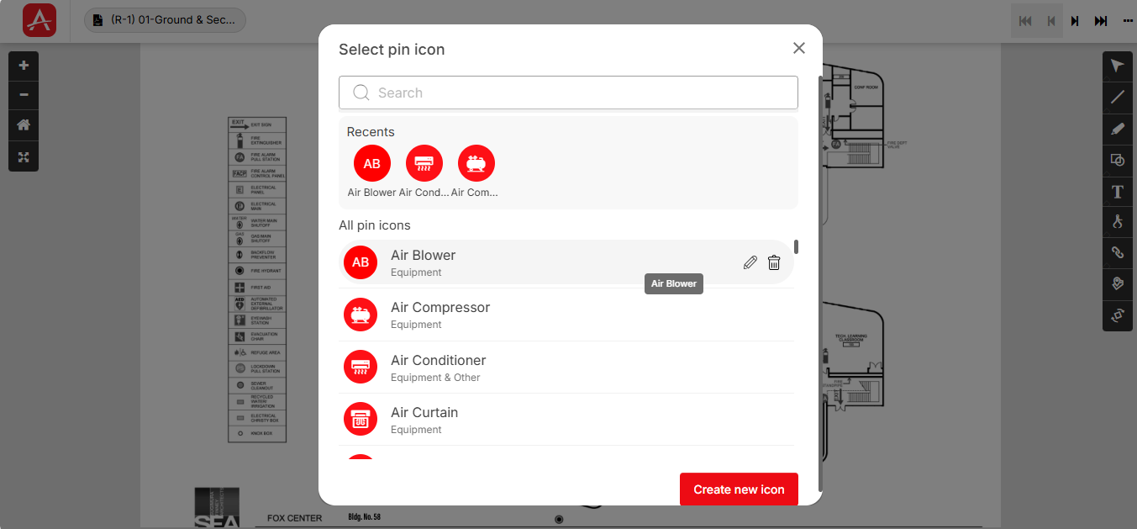
- Hover over the custom PIN icon you want to edit. The Edit and Delete icons appear.
Screenshot below displays the Edit & Delete icons:
The Edit custom icon screen appears.
Screenshot below displays the Edit custom icon screen:
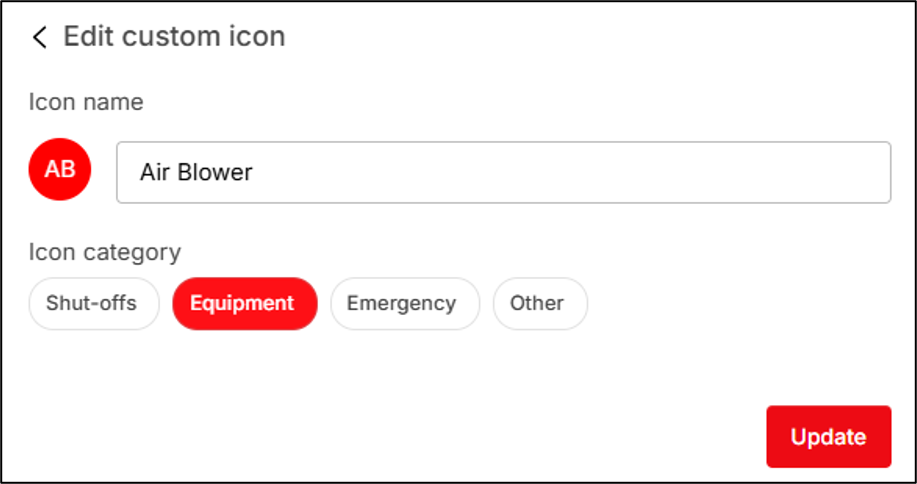
- In the Edit Custom Icon screen, modify the required fields and click [Update] to save the changes.
- To delete a custom icon, hover over the required custom icon in the Select PIN Icon pop-up and click the Delete
 icon.
icon.