
After SAML setup in Microsoft Azure is completed, login to ARC Facilities admin account.
After successful login, click the Profile button in the application, select Settings, and then click SSO to open the SSO Settings page.
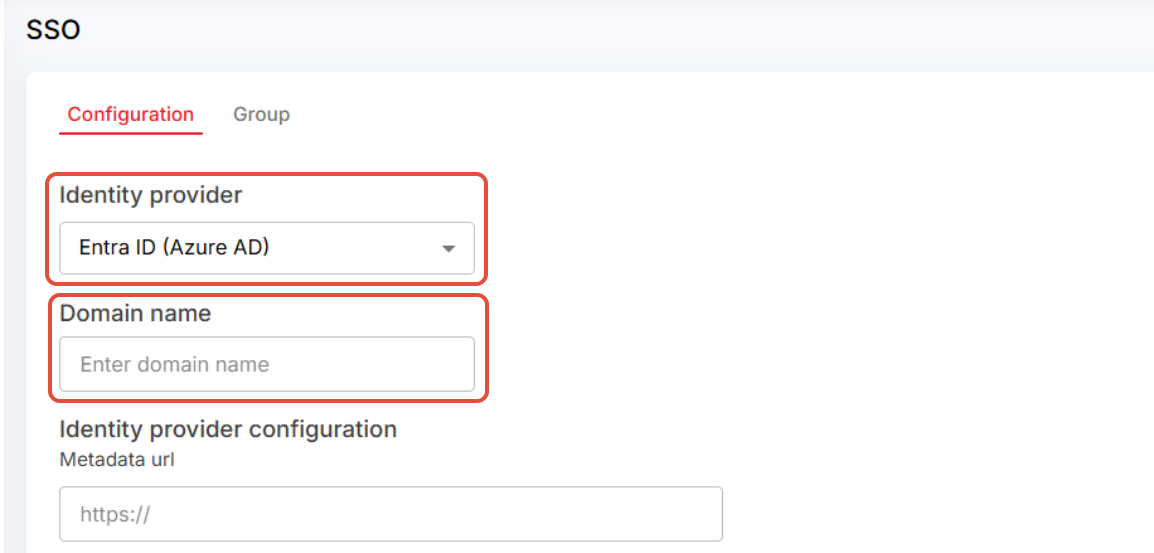
Step 1: Selection of Identity provider and entering domain name
- Select the Identity provider as “Entra ID- AZURE AD” from the dropdown.
- Then enter your company domain name in the domain name text box as shown in below screen.
Step 2: Identity provider configuration:
Approach 1: Pasting the IDP metadata URL in the blank box
- Paste the copied App Federation Metadata URL in the Metadata URL field in ARC Facilities application

- Once done scroll down and click the [Save] button to successfully configure SSO for your account.
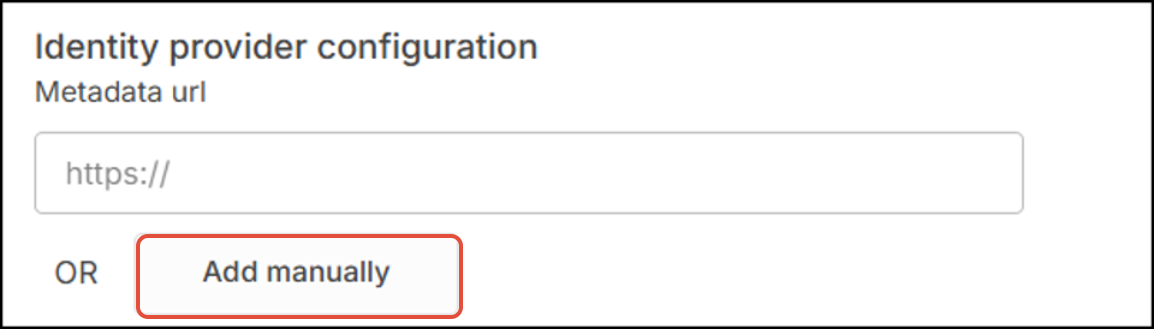
Approach 2: Adding the IDP metadata URL manually
- Click on the [Add Manually] button under Identity provider configuration in ARC Facilities application.
Open the IDP page for Microsoft Azure & follow the below mentioned steps:
Step (a): Copy the Login URL and Microsoft Entra Identifier from the IDP page as shown in the below screenshot.
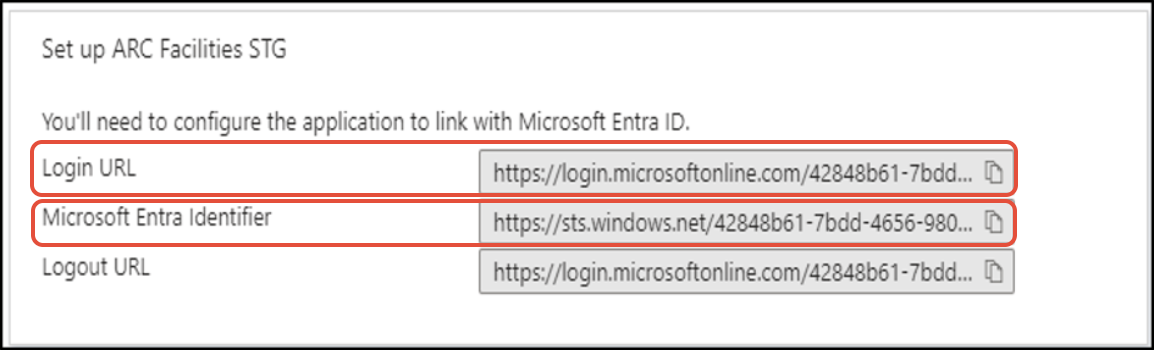
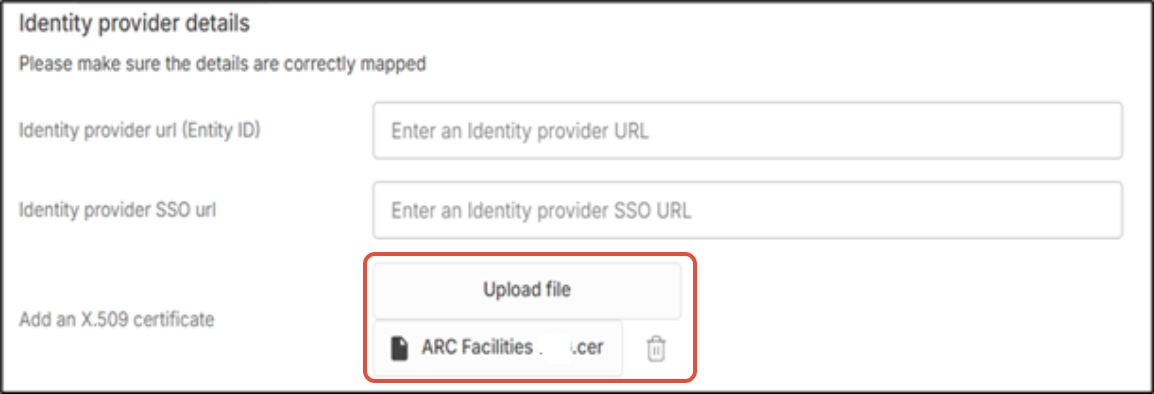
Step (b): Login URL to be pasted in the blank box of “Identity provider SSO URL” & “Microsoft Entra Identifier” to be pasted in “Identity provider URL (Entity ID)”.
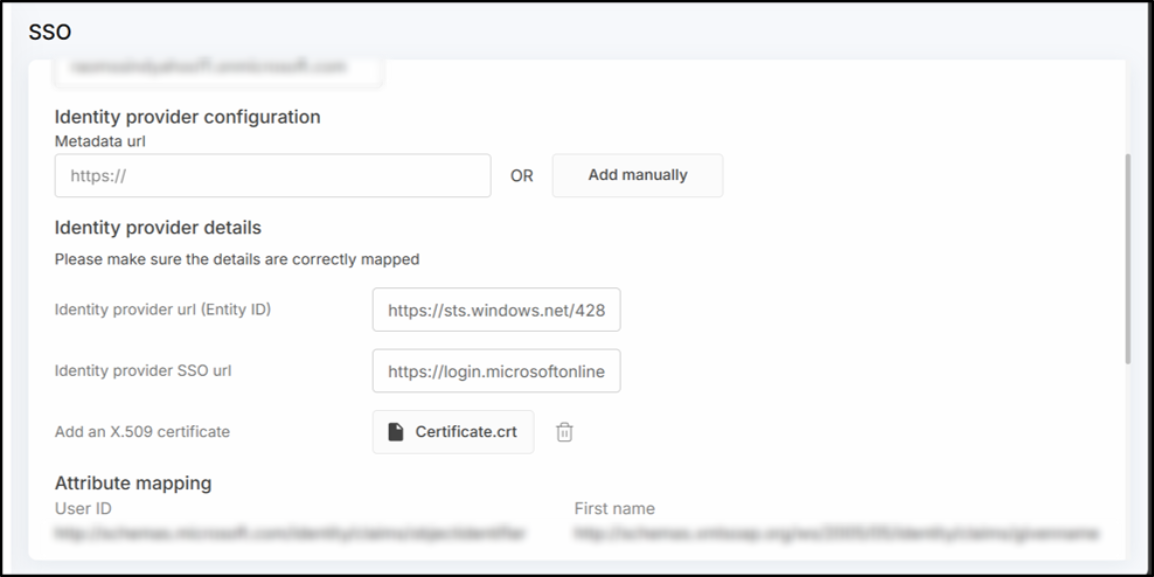
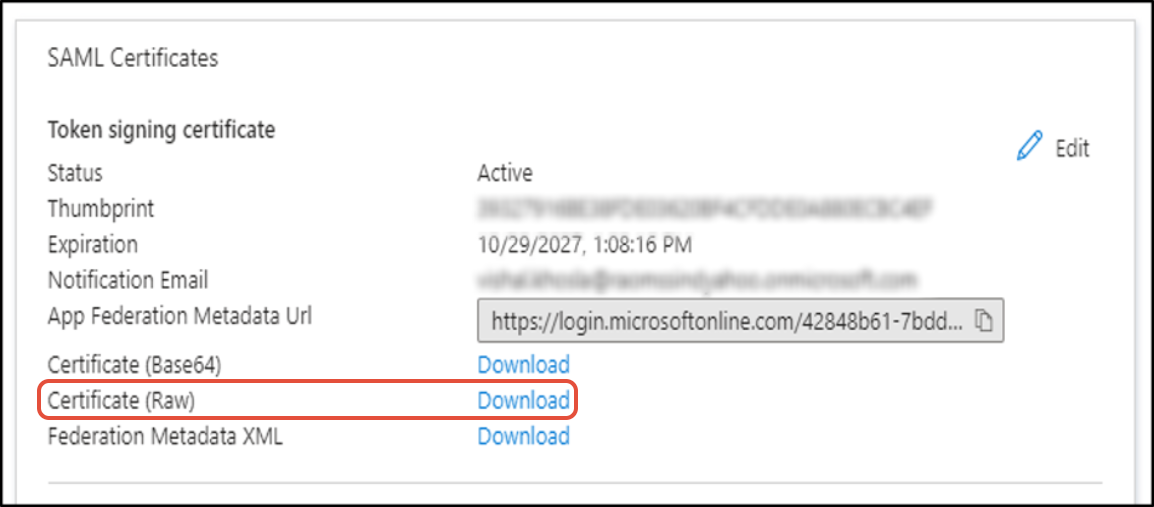
Step (c): From the IDP page SAML Certificates section download a copy of the Certificate (Raw) from the IDP.
Step (d): Once downloaded upload the certificate in the application SSO page.
Step (e): Now you need to compare & verify the following data between the application SSO page and IDP page opened in the background.
- Attributes & Claims
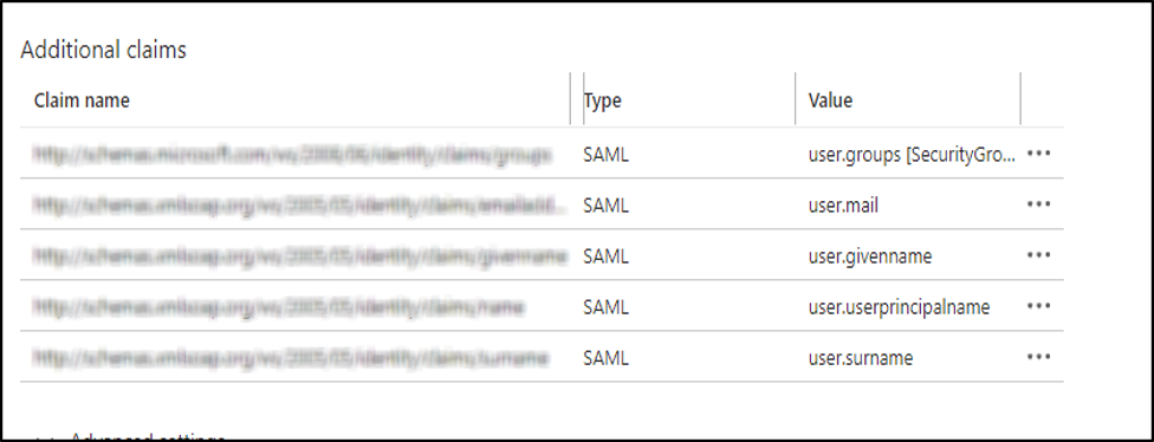
On the IDP page you can find the ‘Attribute & claims’ heading, click on [Edit] button present beside it to open the details page of it. Then compare the data there with the application’s SSO page.
Screenshot below shows the IDP page’s Additional claims section
Screenshot below displays application SSO page’s attribute mapping section
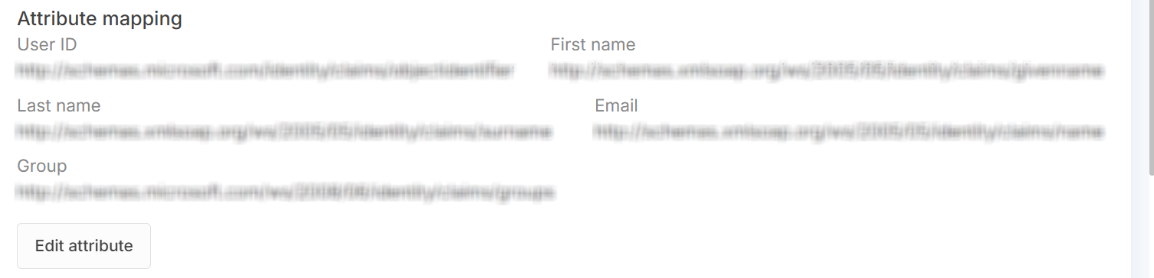
Now, you need to match both the screen and verify whether the IDP page’s additional claims section data is similar with the application SSO page’s Attribute mapping data or not. If found mismatched, click on [Edit attribute] button to enter the correct data from the IDP page.
Note: These mappings are case sensitive and must be matched exactly.