ARC Facilities supports Single Sign-On (SSO), a process that allows users to authenticate themselves against an external Identity Provider (IDP) rather than using the internal ARC Facilities username and password.
ARC Facilities - a Service Provider (SP), communicates using an industry standard protocol, (SAML 2.0 - Secure Assertion Markup Language) with an Identity Provider (IDP) to validate user credentials and provide access to ARC Facilities.
Note: Based on different IDP the below written steps can differ a bit, below mentioned steps are for SSO setup assuming the IDP is Microsoft AZURE.
Setting up ARC FACILITIES SSO in Microsoft Azure
- Authentication Protocol:
- You can integrate the ARC FACILITIES with Azure Active Directory using the Security Assertion Markup Language (SAML 2.0).
- Supported Edition:
- Microsoft Azure Active Directory Premium.
- Required Permissions:
- Global Administrator rights to Azure Active Directory.
- 'Admin' level permissions to access ARC FACILITIES.
Step to configure ARC FACILITIES app in Microsoft Azure
Administrators with access to Microsoft Azure can configure single sign-on for applications which are not present in the Azure Active Directory portal.
Step 1: Adding ARC Facilities application
To connect an application using an app integration template, sign into the Azure portal using your Azure Active Directory administrator account.
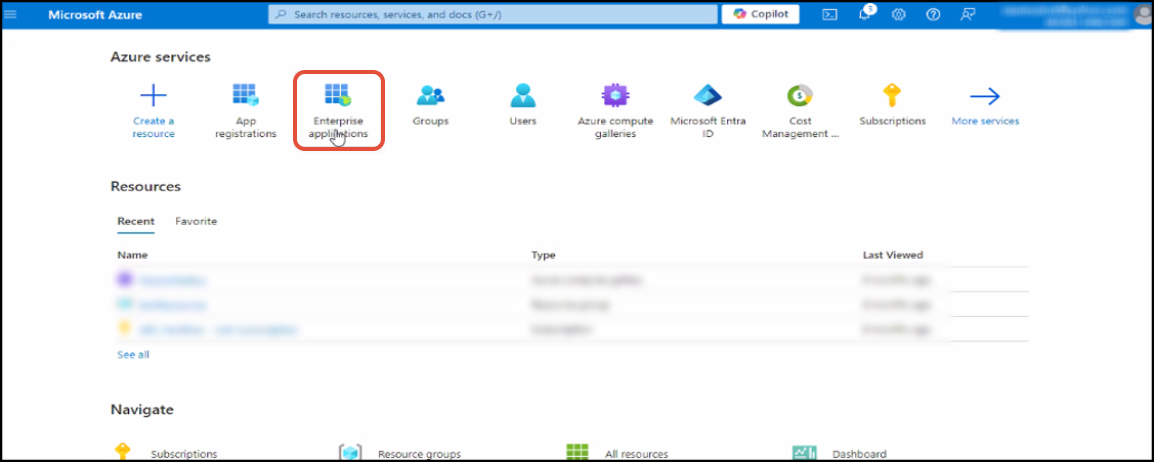
Step (a): Click on the [Enterprise applications] option present under the Azure services header.
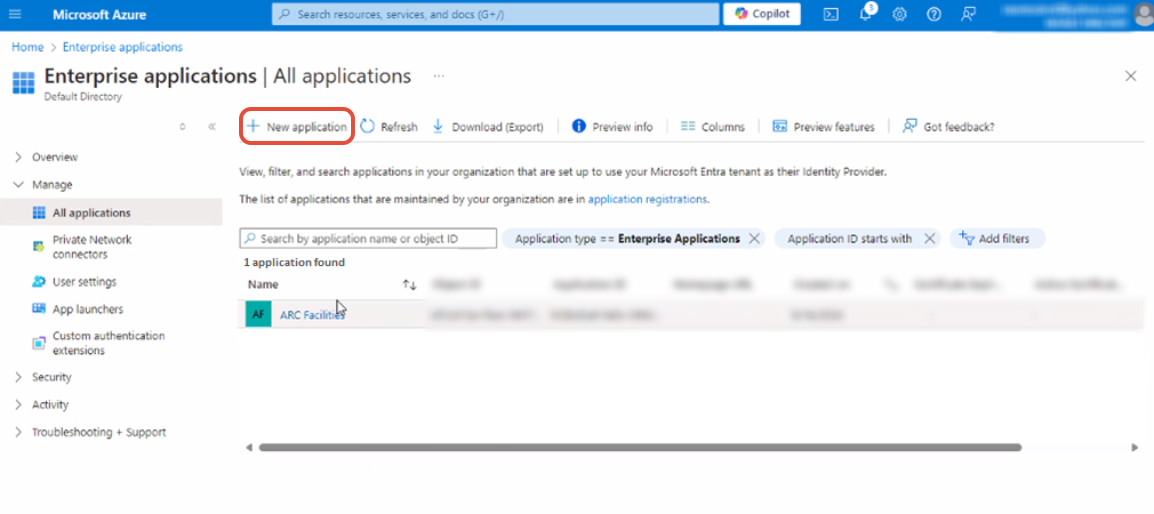
Step (b): Click on the [+New application] button present at the top left of the above shown screen.
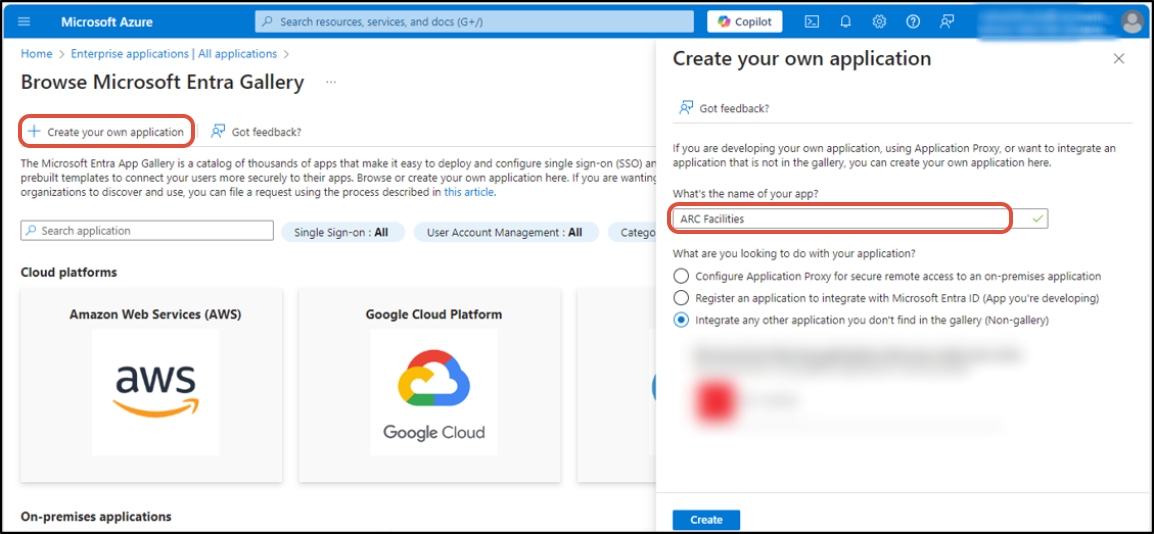
Step (c): Click on Create your own application button. After that, enter the name of the application as required, in the blank space provided. Then click on the [Create] button.
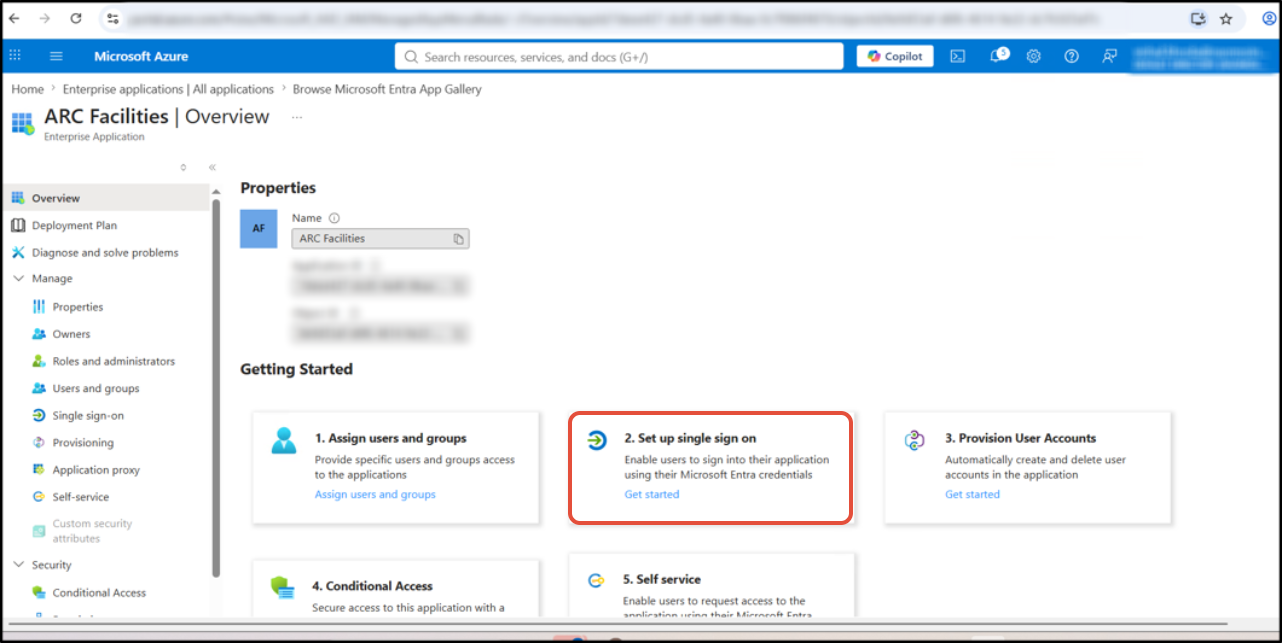
Step (d): Once the application is created, Click on Set up single sign on option from the middle panel to configure sign on for the newly created application.
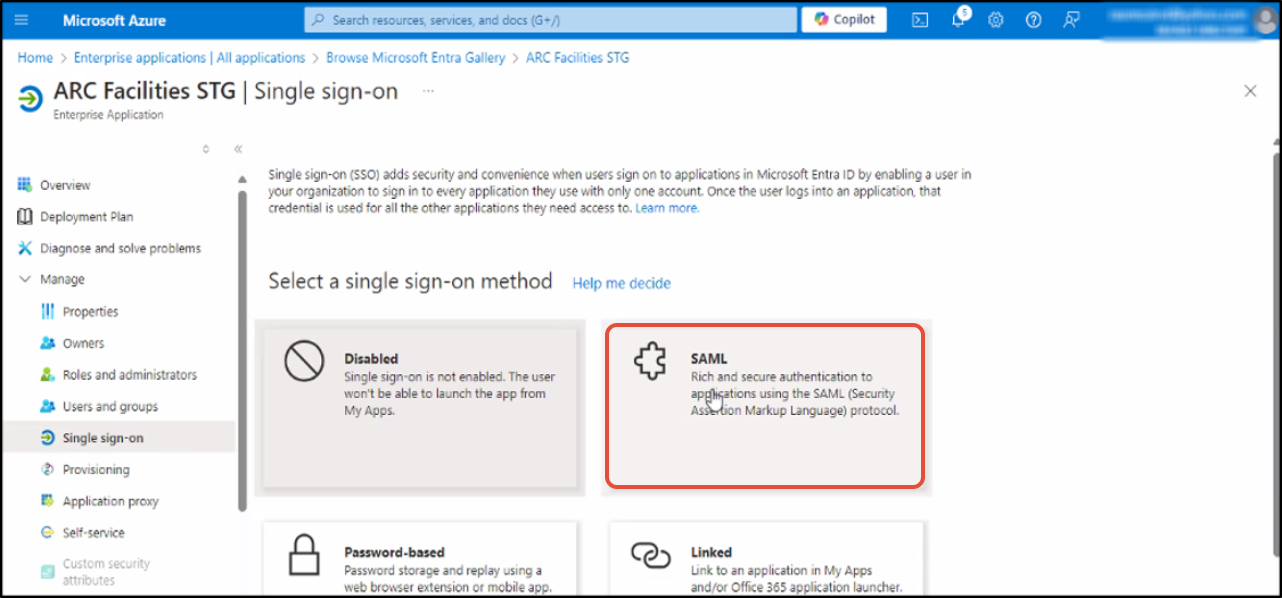
Step (e): Then, click on the “SAML” option.
Step (f): Now click [Edit] button present beside the “Basic SAML configuration” header.
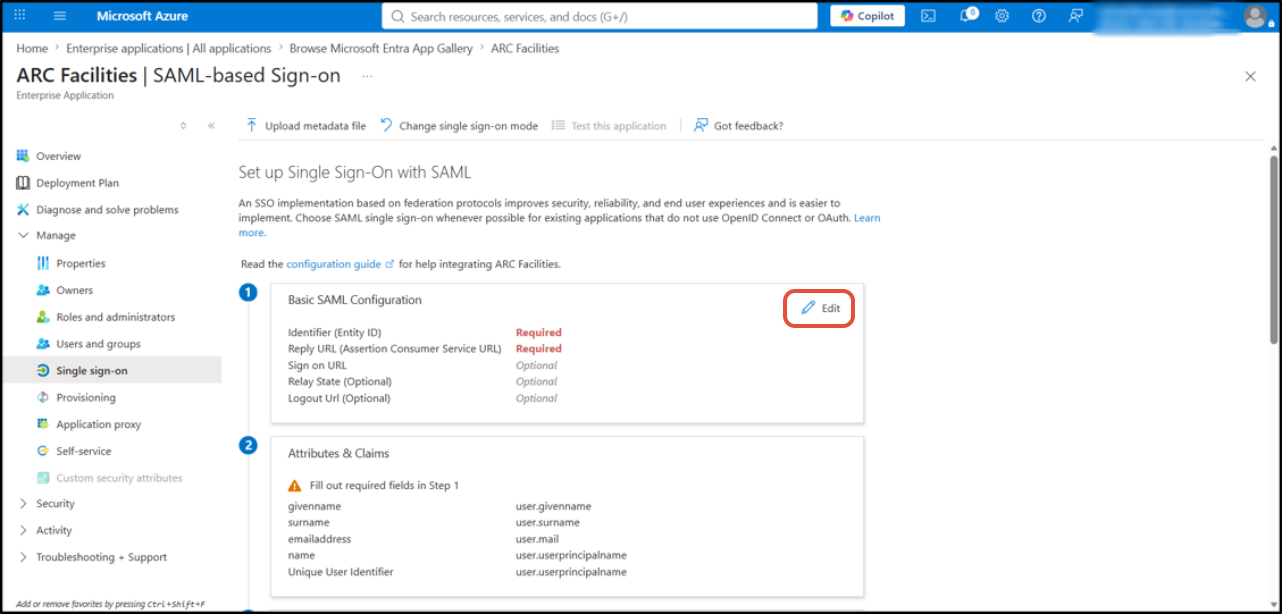
You will be prompted to enter two different URLs corresponding to the SAML endpoints for the application.
Step (g):
Add Identifier URL
- Click on “Add Identifier URL” and Enter the Identifier URL as
https://identity.arcfacilities.com/a73cfa6a-30f1-448a-b704-ce6581d1527d
Identifier - The issuer URL (identifier) should uniquely identify the application for which single sign-on is being configured. This is the value that Azure AD sends back to application as the Audience parameter of the SAML token, and the application is expected to validate it. This value also appears as the Entity ID in any SAML metadata provided by the application.
Add Reply URL
- Click on “Add Reply URL” and Enter the Reply URL as
https://identityx.arcfacilities.com/oauth2/sso/callback
Reply URL - The reply URL is where the application expects to receive the SAML token. This is also referred to as the Assertion Consumer Service (ACS) URL. Check the application’s SAML documentation for details on what its SAML token Reply URL or ACS URL.
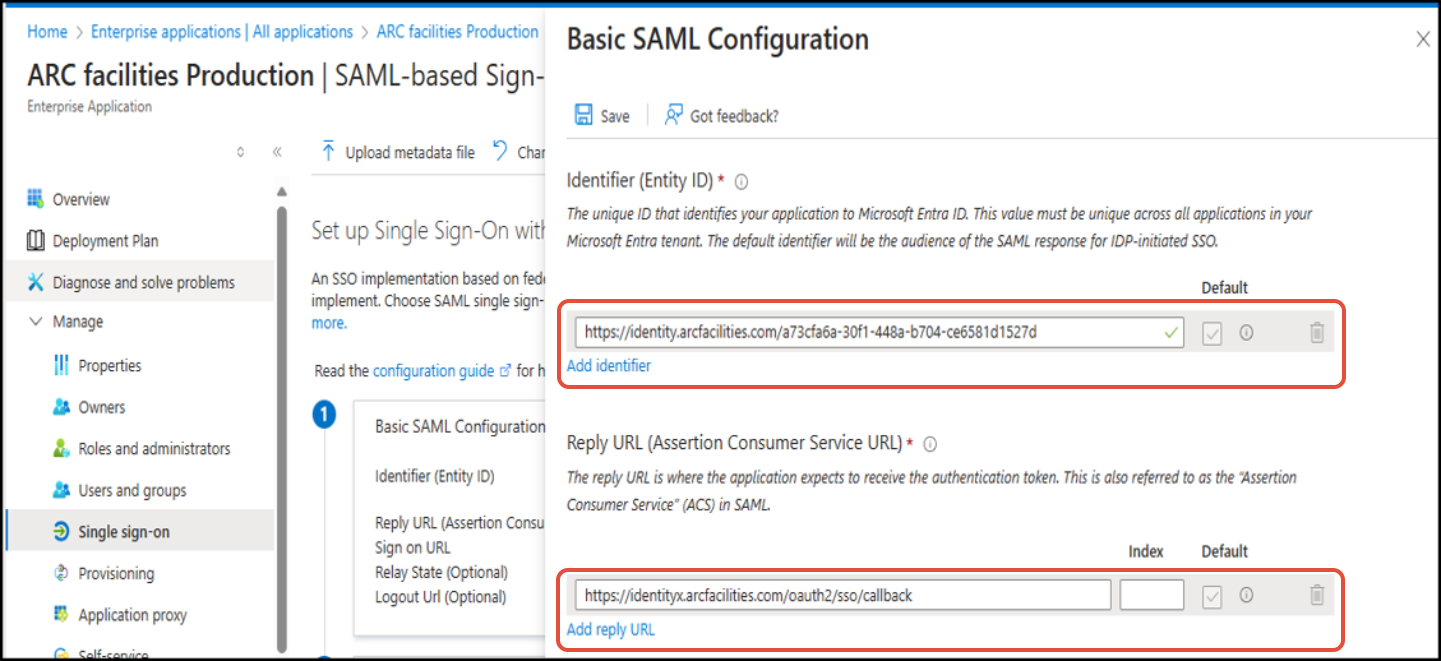
After these have been entered, click [Save] to save the single sign-on configuration.
Step 2: Assigning users and groups to your SAML application
Once your application has been configured to use Azure AD as a SAML-based identity provider, then it is almost ready to test. As a security control, Azure AD will not issue a token allowing them to sign into the application unless they have been granted access using Azure AD. Users may be granted access directly, or through a group that they are a member of.
Access: Go to Azure Active Directory > Enterprise application > Select application (ARC FACILITIES) > Users and groups
To assign a user to your application, click the ‘Add Users’ button. Select the user or group you wish to assign, and then select the Assign button.
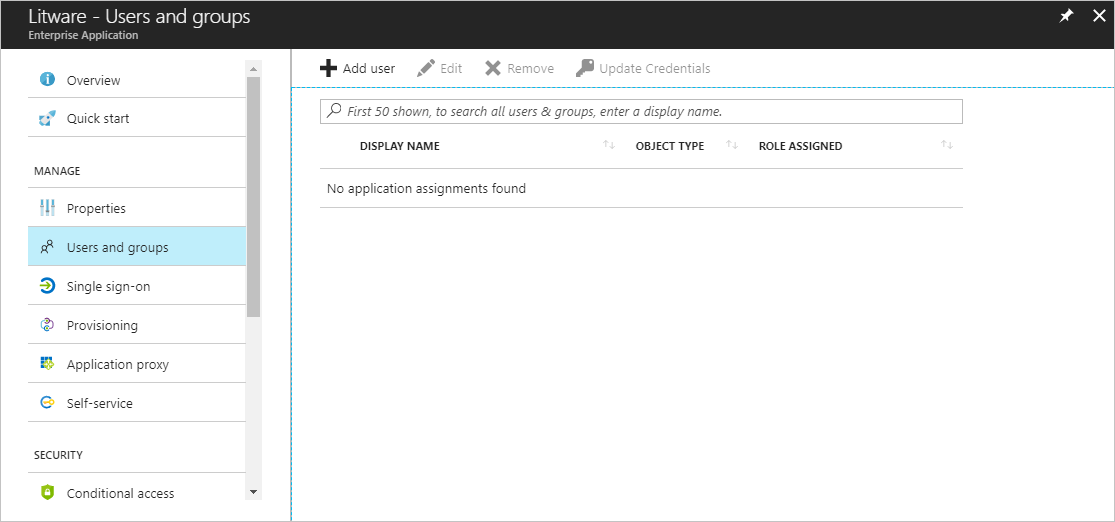
Assigning a user will allow Azure AD to issue a token for the user, as well as causing a tile for this application to appear in the user's Access Panel.
Note: You can upload a tile logo for the application using the Upload Logo button on the Configure tab for the application.
Step 3: Creating a new group and assigning existing users in the group
New groups can also be added in the Microsoft AZURE AD.
Access: Azure AD portal > Home > Groups >All groups. A list of previously created groups will appear (a blank list will appear if no groups were created previously) above which at the top left [New Group] button is present in the portal.
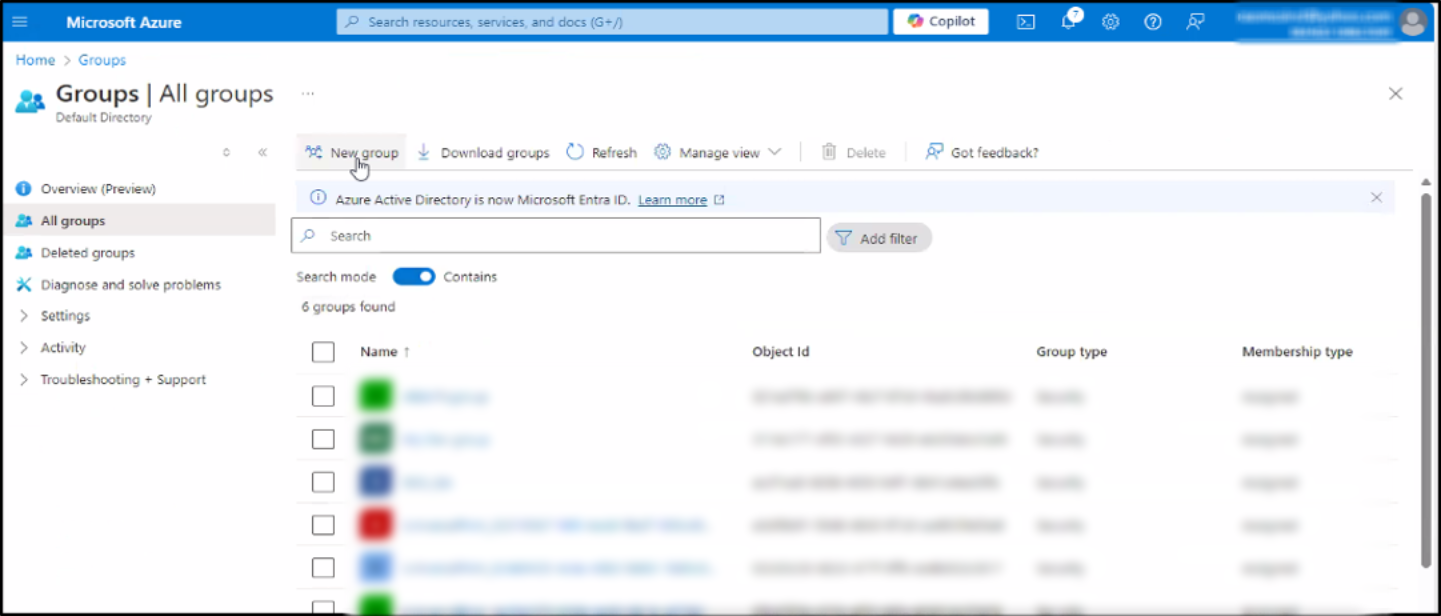
- Click on the [New Group] button to proceed with the group creation process.
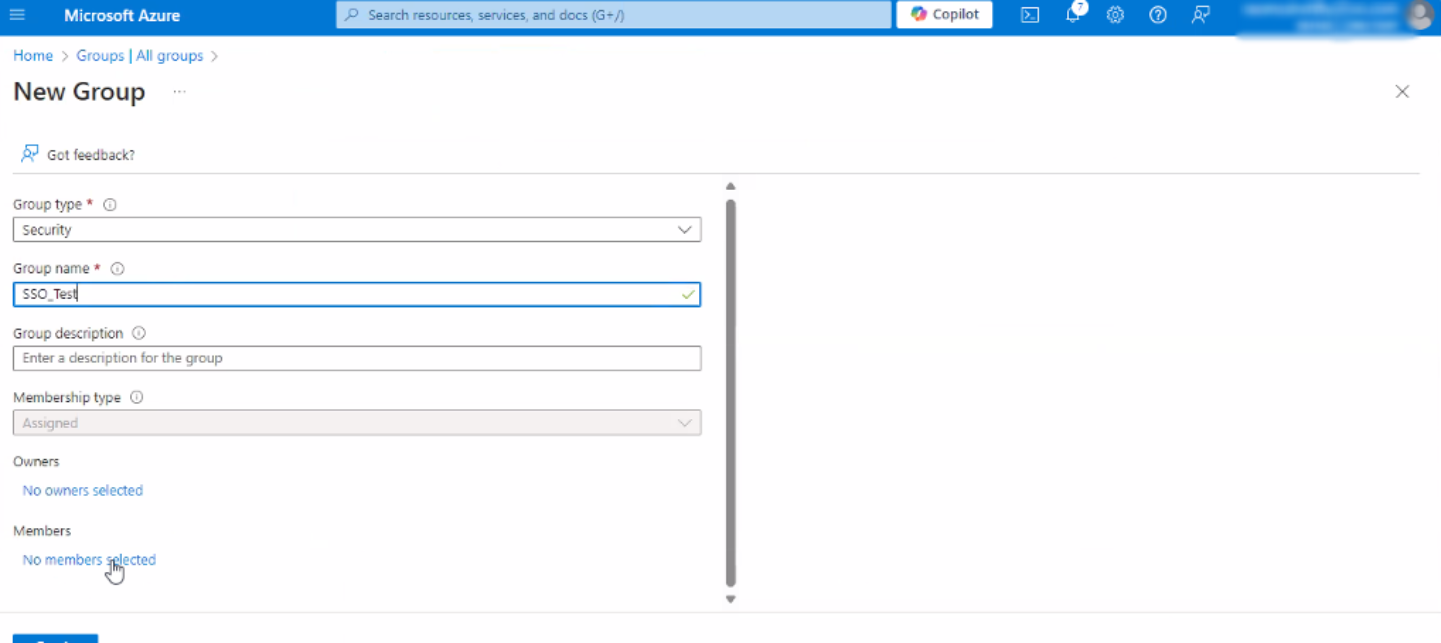
‘New Group’ page will appear.
- Enter the group type to be created.
- Enter the group name and description.
Admin can add members to the group from this page by clicking on the [No members added] text button. Once clicked the below shown window will appear.
- Press [Create] button.
This will create the group successfully.
Step 4: Inclusion of group name in SAML response
To get the ARC FACILITIES group name in SAML response we need to modify the manifest in app settings.
Go to Home page or Dashboard > Click App registrations > Go to All applications> Select the app created before (ARC FACILITIES)
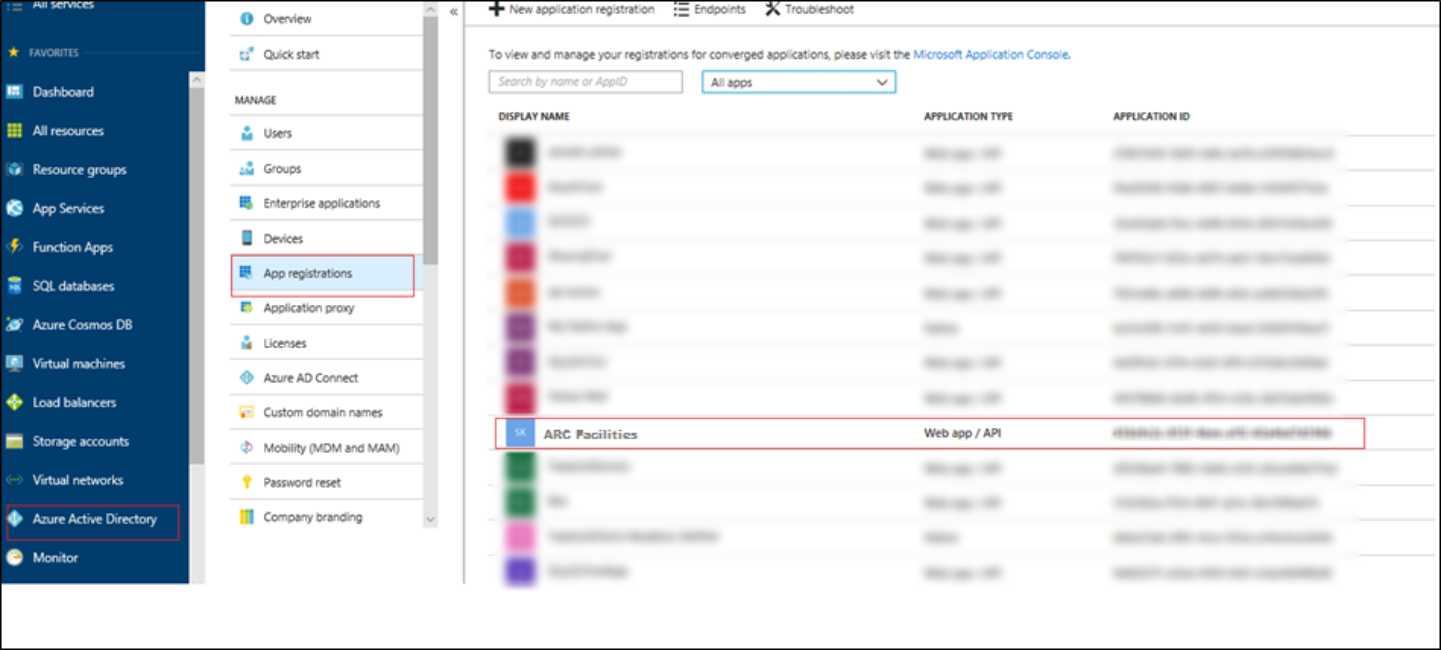
The registered app’s settings screen appears.
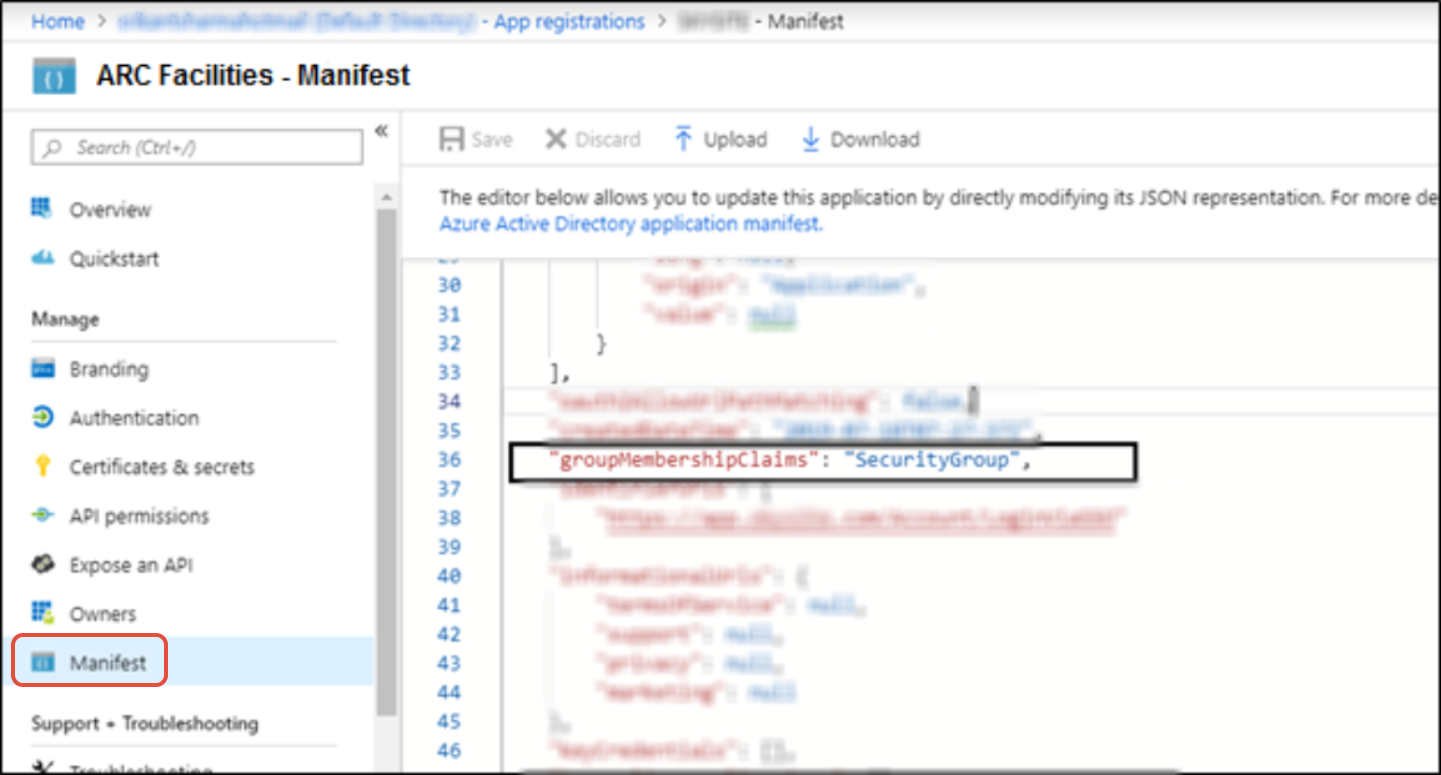
Step (a): Click [Manifest] button.
Step (b): Enter ("SecurityGroup") in place of (null) besides ("groupMembershipClaims":).
"groupMembershipClaims": "SecurityGroup"
Screenshot below displays the name of the group:
Step (c): Enter the following code in place of (null) besides ("optionalClaims":).
{
"idToken": [],
"accessToken": [],
"saml2Token": [
{
"name": "groups",
"source": null,
"essential": false,
"additionalProperties": [
"sam_account_name",
"max_size_limit"
]
}
]
}
Screenshot displays the group name code in SAML response: (optionalClaims)
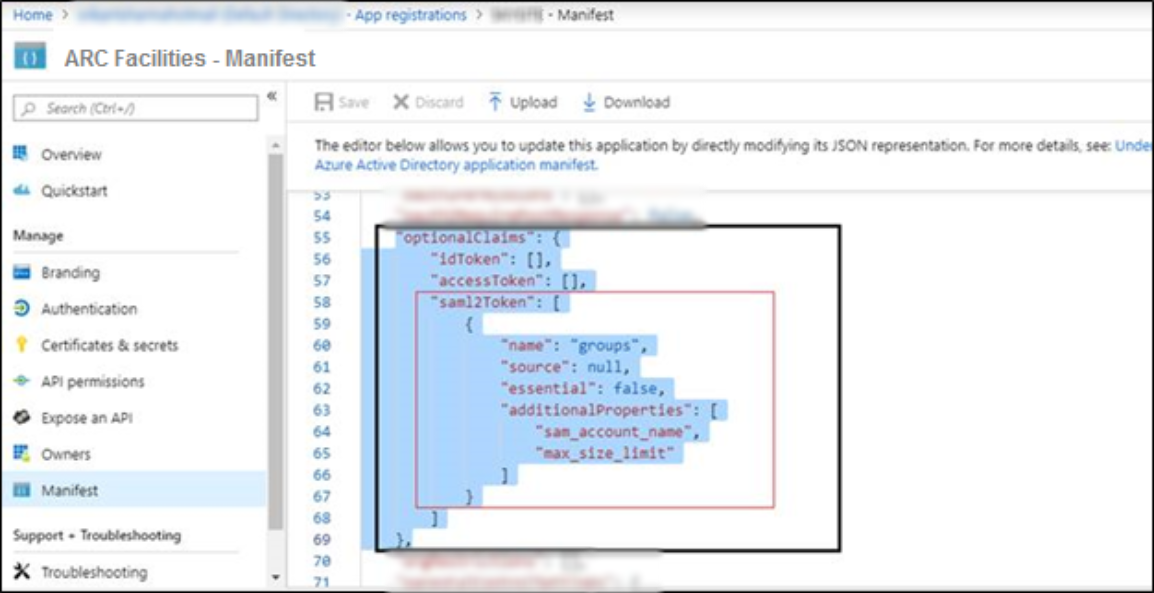
Note: It is mandatory to update the group name codes with the above provided codes.
Step 5: Copying App Federation metadata URL
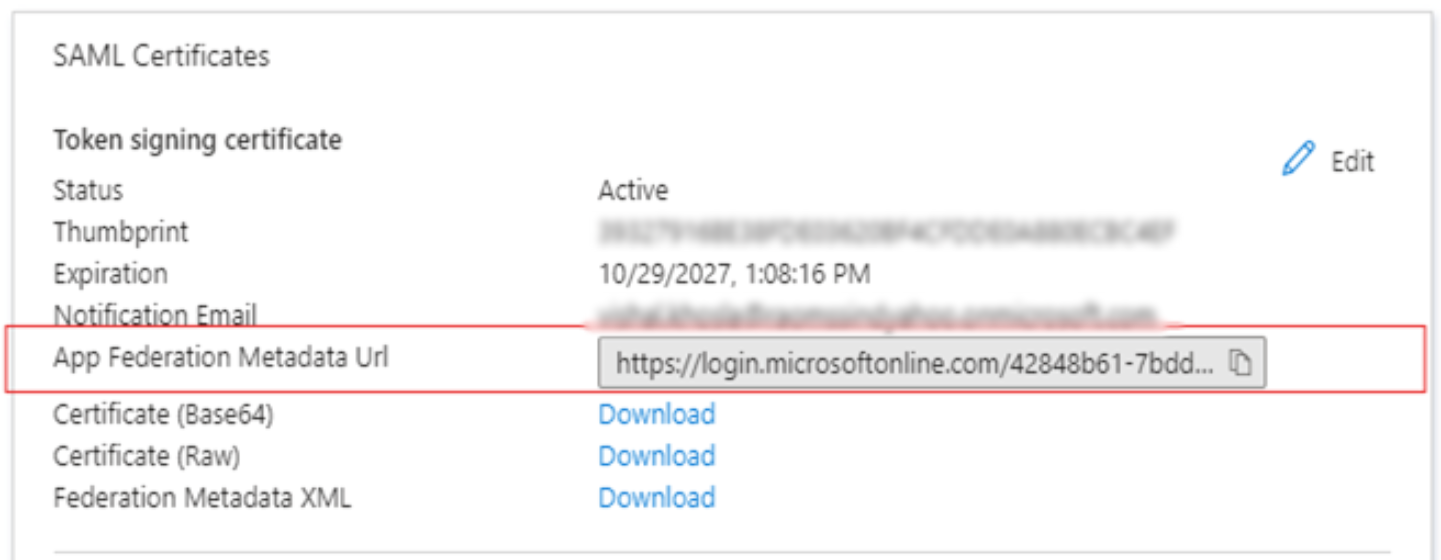
After modifying the manifest, navigate to Enterprise Applications → select the newly created application (ARC Facilities) → click Set up single sign-on → copy the App Federation Metadata URL from the SAML Certificates section.
Note: App Federation metadata URL is required to configure SSO in ARC Facilities.