
This section describes the process of adding new equipment information.
- The Add equipment screen appears as soon as you click on the [Add Equipment] button from the Equipment Dashboard or Equipment List (All equipment) screen.
Screenshot below displays Add equipment modal pop-up 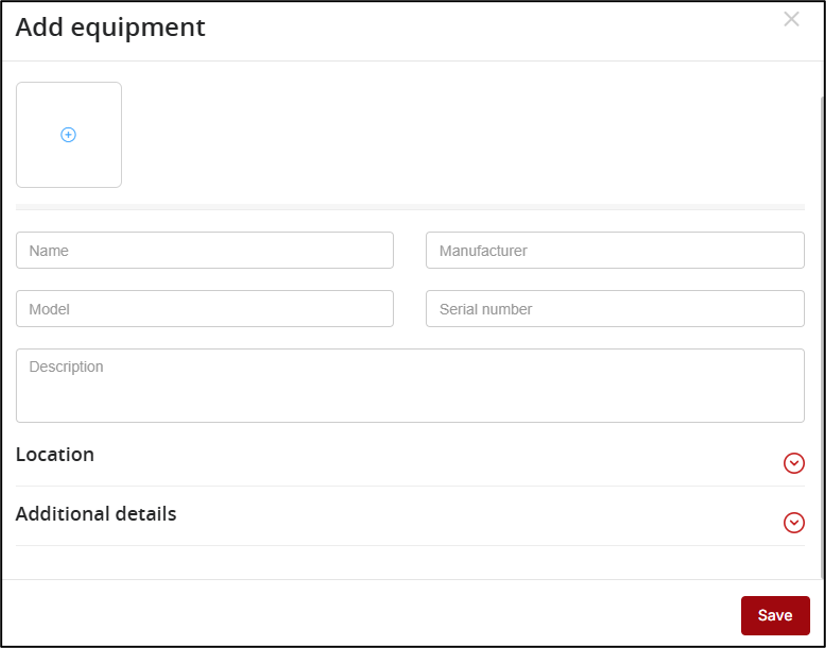
In the Add equipment screen, enter/select the following information for equipment:
- Attach photo/video of the equipment by clicking the [Photo/video] plus button either from the local computer or from the ARC Facilities app. A maximum of 10 photos and 5 videos can be added to each piece of equipment.
- Enter the general info which includes entering name of the equipment, description of the equipment, manufacturer of the equipment, Model of the equipment and the Serial number.
On the Add Equipment screen, the Location and Additional Details sections are collapsed by default. Expand these sections to view or enter additional information.
- To expand the Location section, click the expand (
 ) icon on the right side of the section header.
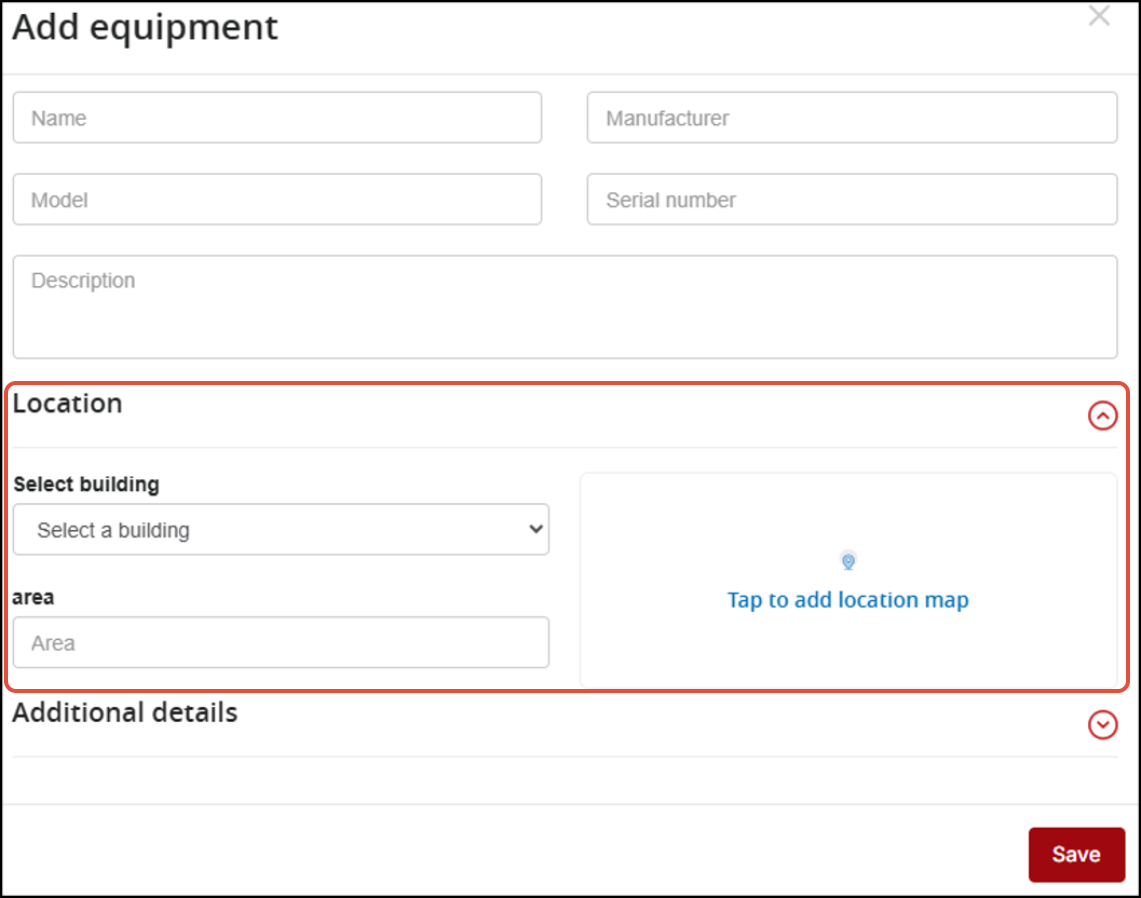
- Select the required building from the dropdown. Once selected, the Select a Floor field is displayed, allowing you to choose a floor within the building.
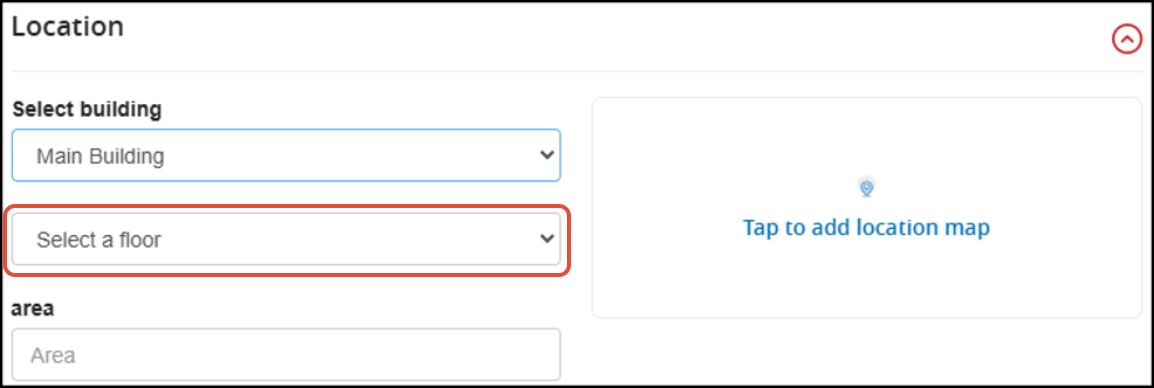
- After selecting a floor, enter the area details and click Tap to Add Location Map.
- Place a pin at the required location on the floor plan to mark the equipment location.
- Enter the required pin details.
- Save the PIN. (You can create a new PIN by following the steps described in Create PIN under PIN Overview & Creation Flow)
- The equipment location is associated with the selected pin.
- You can also create an Equipment Type pin and create the equipment directly from the pin. The equipment is automatically associated with the pin's location.
- Place a pin at the required location on the floor plan to mark the equipment location.
- To expand the Additional Details section, click the expand (
 ) icon on the right side of the section header.
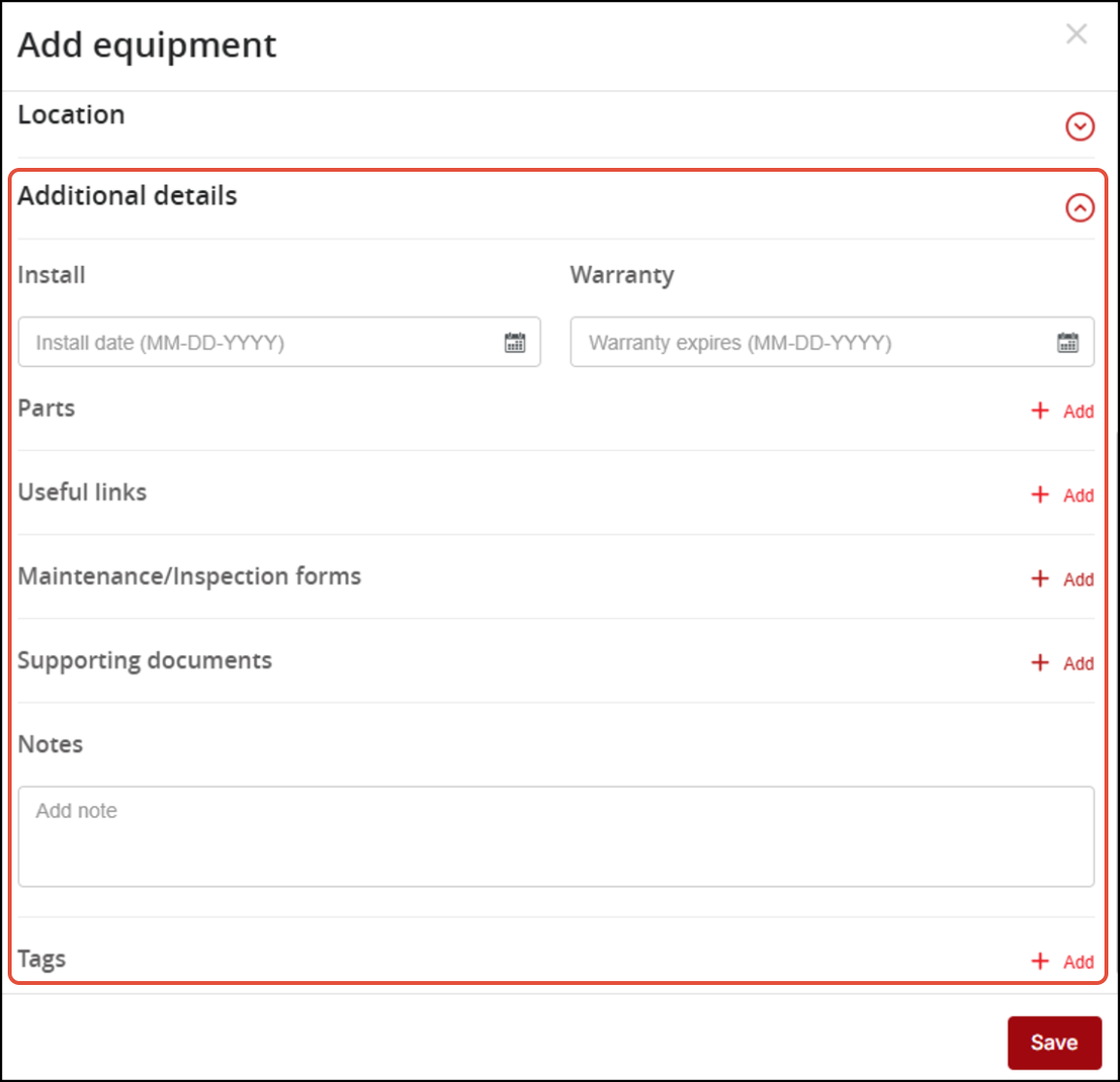
- Enter the Install Date in the Install field.
- Enter the Warranty Expiry Date in the Warranty field.
- Click [Add] adjacent to the Maintenance/Inspection forms section to associate a maintenance form (PDF form) with the equipment. A maximum of 20 forms can be associated.
The Form templates screen will appear, displaying all the form templates present in the Forms module of the campus.
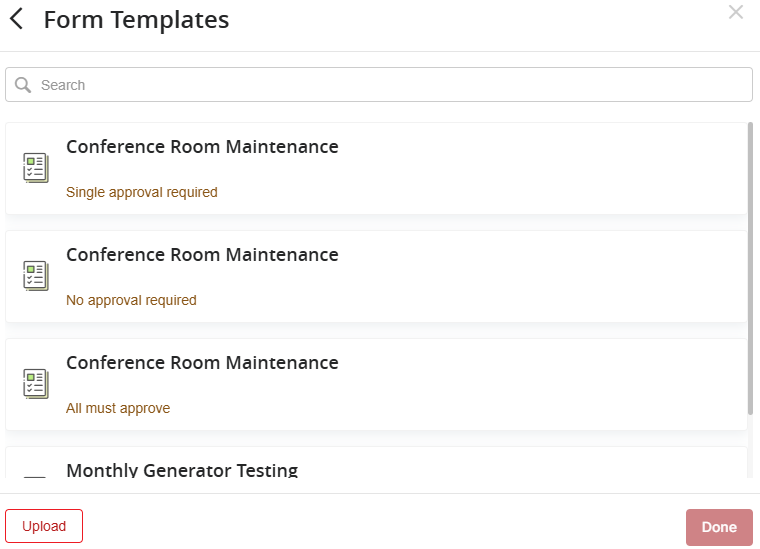
- You will click on a template to select that template (only one template can be selected at a time). As soon as you select a template, the schedule section appears.
- You can also click on [Upload] button to upload a new Form Template by following the steps as mentioned in "Uploading a form template" section.
- Click [Add] adjacent to the Supporting documents section to attach/link files from ARC Facilities or device with the equipment. A maximum of 30 files can be added.
- Click [Add] adjacent to the Parts section to add information on equipment parts (such as Part name, Part number, Part description, Other instructions, Dealer name and Link to order). You can add multiple parts.
- Click [Add] adjacent to the Useful links section to associate external website links with the equipment. A maximum of 30 links can be added.
- Enter any notes in the Notes section.
- Click [Add] adjacent to the Tags section to add any number of string tags with the equipment for searching.
Click the [Save] button to add equipment after providing the above listed information.
Add Equipment Details
Adding equipment information details in various fields allows for the equipment to be searched based on these values.
- Name -- Mandatory (Required)
- Description -- Optional
- Install Date -- Optional
- Warranty Expires -- Optional
- Manufacturer -- Optional
- Model -- Optional
- Serial Number -- Optional
After entering the information in the associated fields, click on the [Save] button.
You can also create equipment by placing an Equipment Type pin on the equipment map.
- Enter the required Pin Details.
- Enter the required Equipment information.
- Save the PIN. (You can create a new PIN by following the steps described in Create PIN under PIN Overview & Creation Flow)
The equipment is created and appears in the Equipment List.