
After you sign in, the Campus List screen appears.
To open the Equipment module:
- From the Campus List screen, select a campus. The Campus Dashboard appears.
- If you have just completed the campus map setup, the Campus Dashboard appears automatically.
- From the Campus Dashboard, select Equipment from the left panel. The Equipment module opens.
On opening the Equipment module, you are presented with the options to select Equipment Maps, Equipment List or O&M Documents (Unassociated).
The options presented following that choice are presented below.
1. Equipment Maps (widget)
- Building Selection (select from Campus Map or Building List)
- List of Floors for selection
- Opens Equipment Location map for the selected floor.
- List of Floors for selection
2. Equipment List (widget)
- Opens Equipment list
3. O&M Documents (Unassociated) (widget)
- Opens a folder which may contain a variety of content and sub-folders
Screenshot below displays the Equipment module widgets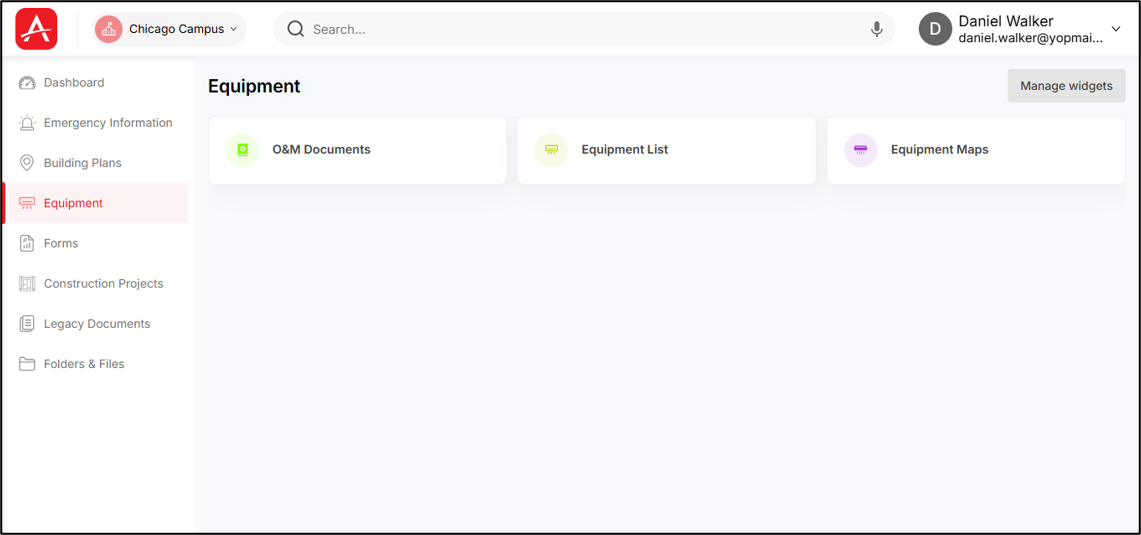
- Click the [Manage widgets] button on the top right-corner of the screen to open the right-panel from where you hide or unhide any widget out of the three displayed on the screen.
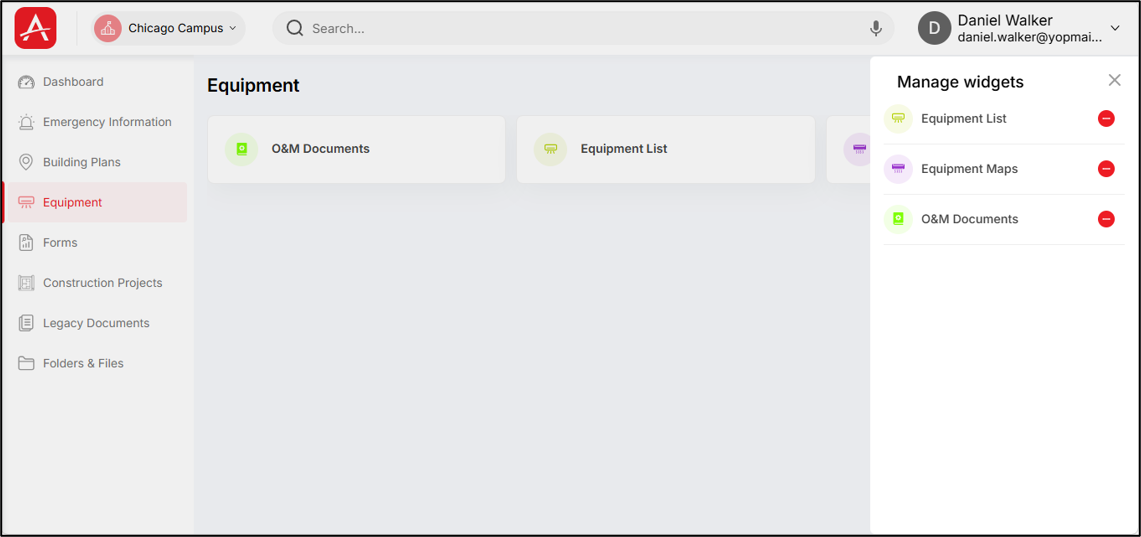
You can add these modules or remove these modules from the screen.
- You can click on any of the three widgets displayed within this module to set up or navigate inside those widgets (if already set up).